Browsing a bucket
Click a bucket in the sidebar.
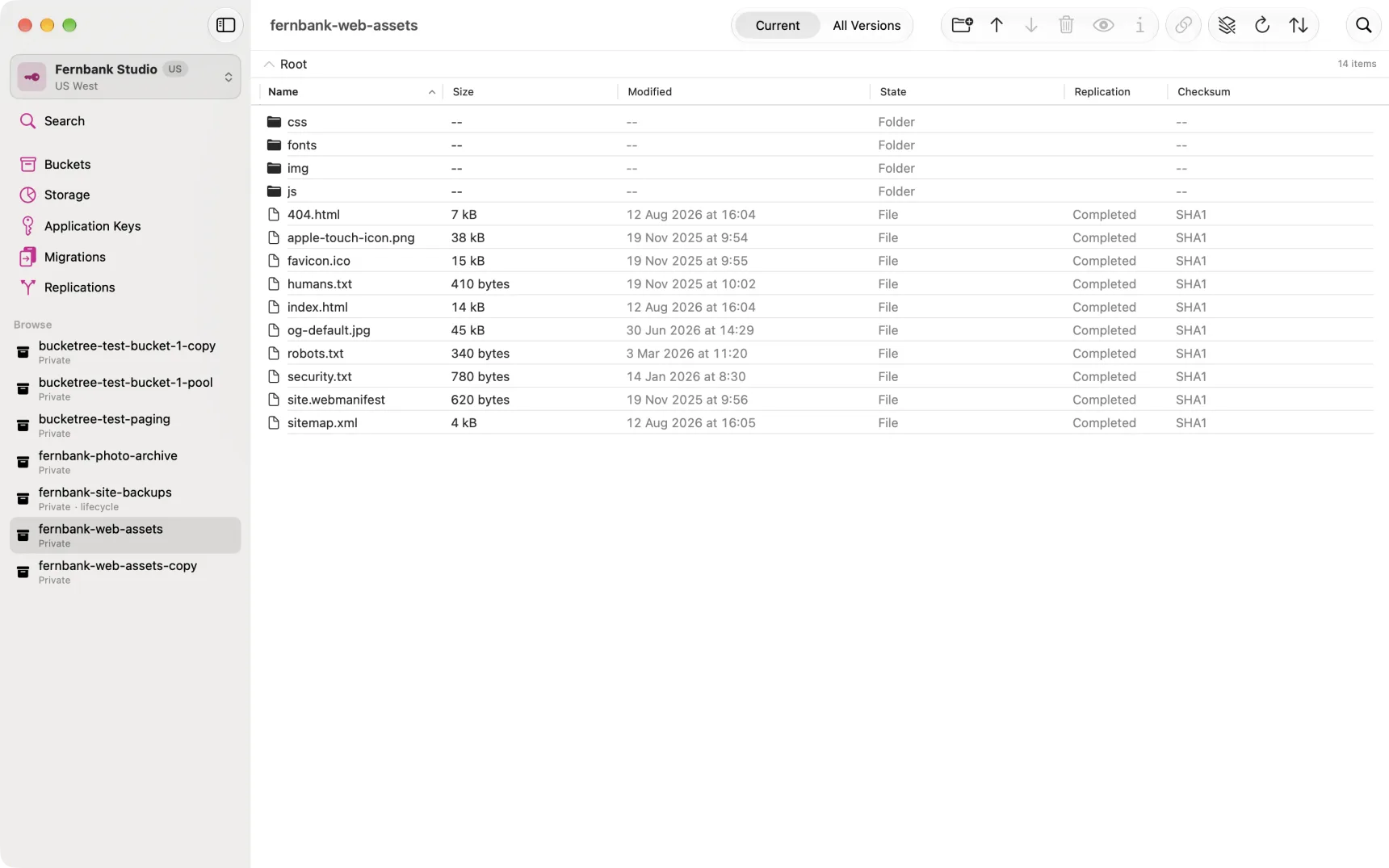
Click a column heading to sort by it, and again to reverse the order; folders stay at the top whatever the sort. Drag a divider to resize a column, double-click it to fit the column to what it holds, or right-click a heading to hide and show columns. Bucketree remembers all of it, the sort per bucket, as Finder remembers a sort per folder. This works in every table in the app.
Current and All Versions
The switch at the top of the window changes what the listing means.
Current shows the newest version of each name, which is what you would expect a file list to show.
All Versions shows every version B2 holds, including hide markers and unfinished uploads. This is the view that tells the truth about what you are storing. See Versions, and what they cost.
The view also decides what a selection means to Copy, Move and Delete: in Current you act on files, in All Versions on the versions themselves. See Copying and moving files.
Folders
B2 has no folders. What Bucketree shows as a folder is a / inside file names,
and the app groups them for you because that is how people think. Nothing is
created or destroyed by "entering" one.
New Folder (Shift-Command-N, or the toolbar button) makes one in the
folder you are looking at. What it makes is the same empty placeholder
Backblaze's web console makes, a zero-byte file called .bzEmpty inside
the new name, so the folder exists before anything is in it. Bucketree keeps
that file out of the ordinary listing, the way Finder keeps .DS_Store out
of yours; All Versions shows it. Because of that placeholder, a folder made
this way stays listed after the last file you can see has gone; Delete
on the folder removes the placeholder with everything else, and that is how
an empty one goes. A folder name cannot contain a slash: make one folder,
then another inside it.
Getting around
- Double-click or Return opens a folder, or downloads a file.
- Right-click a file for what can be done with it, or the empty space below the files for what can be done here: New Folder, Paste, Move Items Here and Refresh.
- Right-click the toolbar to show titles under its buttons (Icon and Text) or icons alone, which is the default. Bucketree remembers the choice.
- Space or the eye button previews the selected file without keeping it.
- ⌘I or the ⓘ button shows everything B2 knows about it.
- The breadcrumb bar and Root take you back up.
Looking at a file without downloading it
Select a file and press Space, or ⌘Y, or the eye in the toolbar. Bucketree fetches enough of the file to preview it and shows it in place: images, PDFs, text, anything macOS itself can preview.
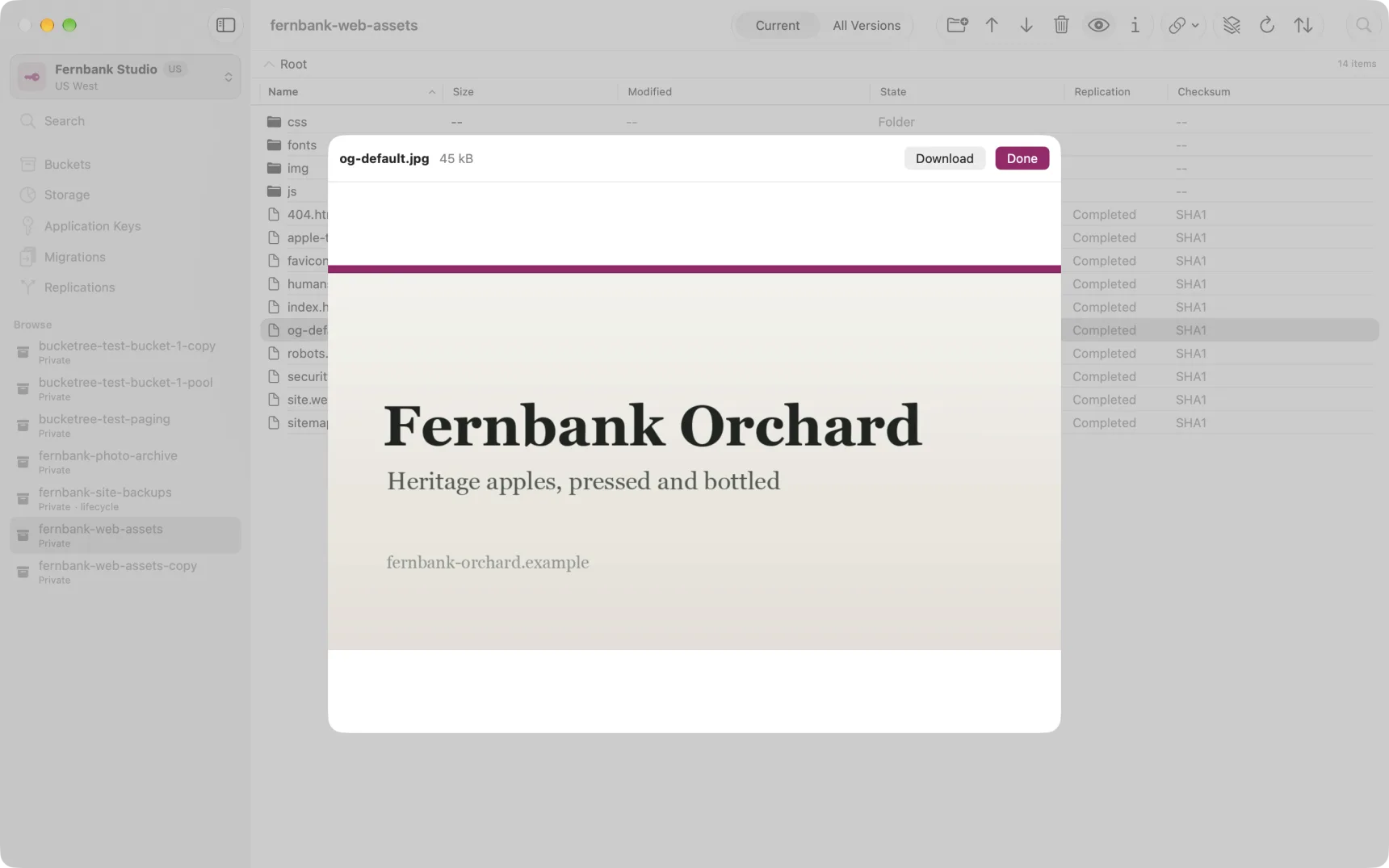
The file is not saved to your Mac. Nothing lands on disk until you press Download, which is the point: checking that last night's backup contains what you think it does should not mean pulling it down first.
Paging
Listings arrive a thousand names at a time. While there is more to come the footer count reads so far, and the next thousand arrive on their own as you scroll to the bottom. A Load More button sits under the last row if you would rather fetch them now.
The cached label
If the footer says cached, the listing came from memory and cost nothing. Bucketree drops what it holds whenever you write to a bucket, so a cached listing can never be older than your own last change. It is not kept between launches.