Copying and moving files
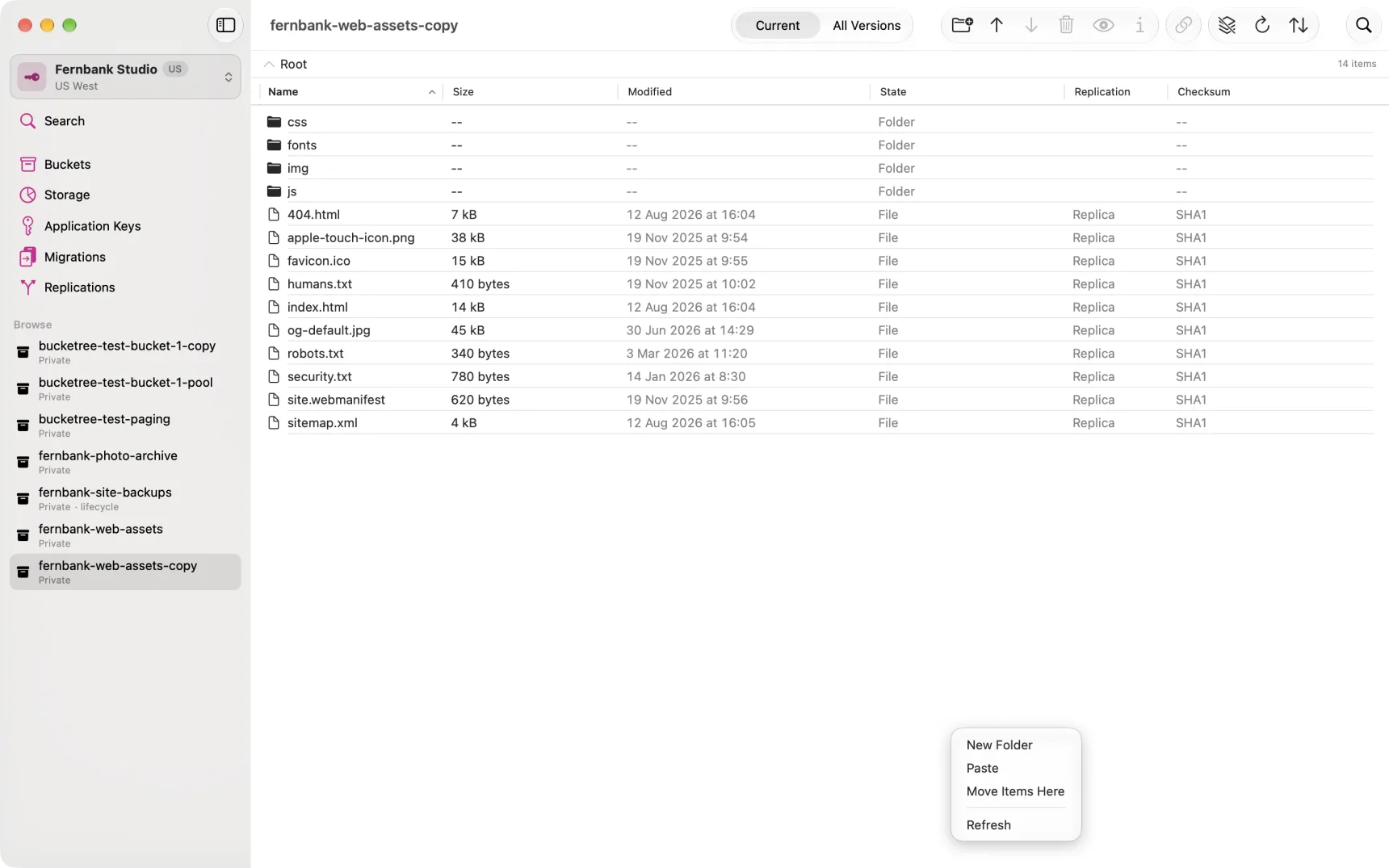
Copy and paste, the way Finder does it: select files or folders, Copy (Command-C), open the folder they should go to, and Paste (Command-V) to copy them there or Move Items Here (Option-Command-V) to move them. All three are in the Edit menu and in the right-click menu of the listing; right-click the empty space in a folder for Paste and Move Items Here. The destination can be any folder in any bucket of the same account.
Nothing is written until you have seen what will happen. The sheet shows where the files are coming from and going to, counts what is going (files, versions and size, folders included), says how long it will take when that is more than a minute, and says what to do about names that are already there. The sheet stays open while it runs; Stop leaves what has already arrived. Every copy and every deletion is recorded in the Activity Log.
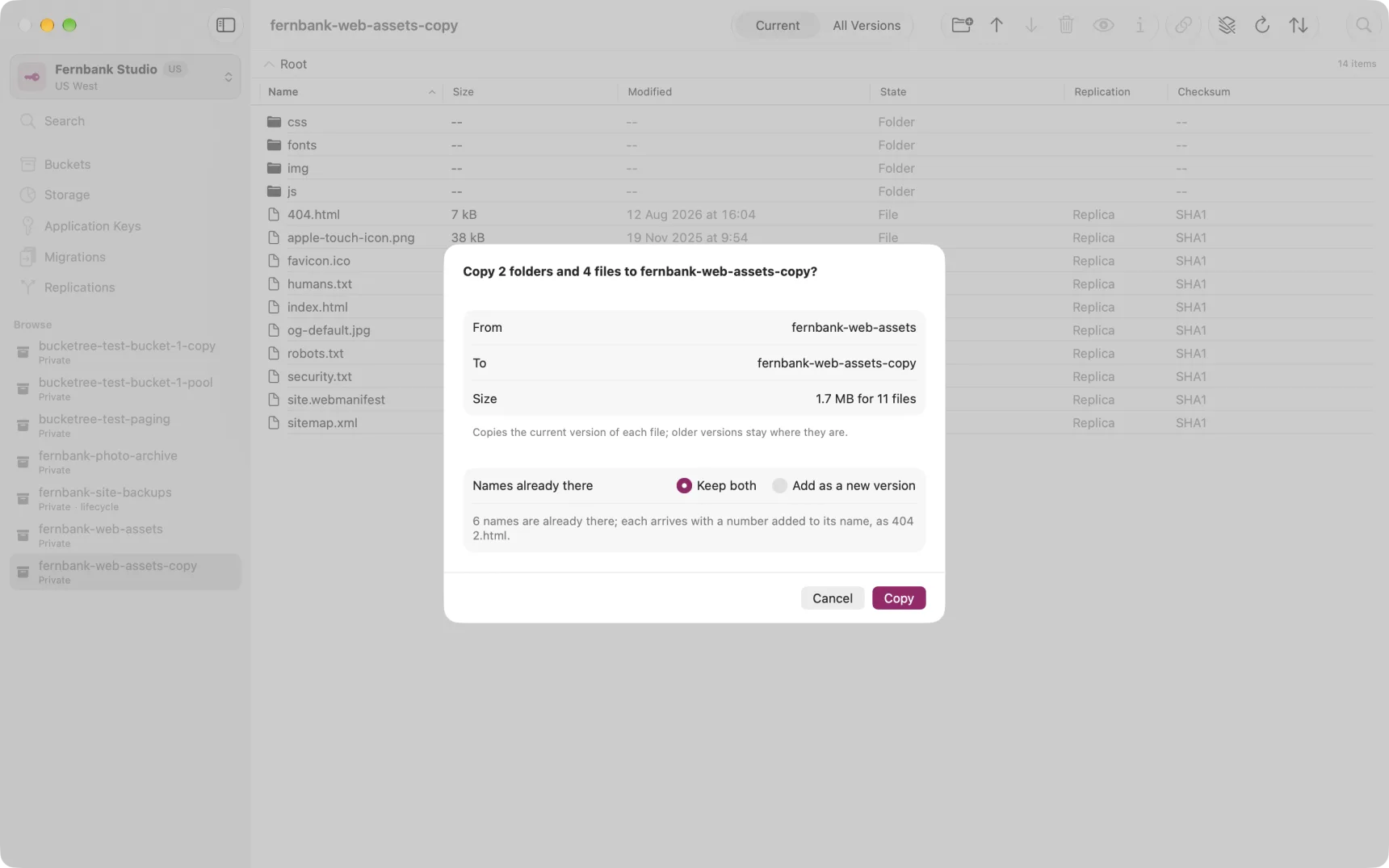
The files never pass through your Mac. Backblaze copies them inside B2, which is why a large copy finishes in seconds rather than at the speed of your connection.
The view decides what travels
Bucketree's listing has two views, Current and All Versions, and they are not just two ways of looking at the same thing. They change what a selection means, and so what Copy and Move take with them.
| Current view | All Versions view | |
|---|---|---|
| What you select | files | versions |
| Copy | the current version of each file; older versions stay where they are | exactly the versions you selected, in their original order |
| Move | every version of each file, and the file leaves the source folder | exactly the versions you selected; any others stay under the same name in the source folder |
| Delete | every version of each file | that version |
The reasoning is the reasoning you would use yourself. Copying a file is about the file as it is now, so it takes the current version. Moving a file means it should no longer be here, so it takes every version with it. In All Versions you are looking at the versions themselves, so you get exactly what you picked.
Two consequences of the All Versions column are worth knowing before you use it:
- Move the current version of a name away and the next-newest version becomes current at the source.
- Select a hide marker and move it, and the name it was hiding reappears at the source, because nothing hides it any more. At the destination, the name arrives hidden. A marker cannot travel on its own: select the versions it hides as well, so there is something at the destination to hide.
Unfinished uploads never travel. They are not files yet.
Folders
A folder copies with every file currently in it, and moves with every version of every file in it: the Current and All Versions rules above, applied to everything under the folder's name. Folders can only be selected in the Current view.
When a name is already there
Backblaze never overwrites. Pasting onto a name that exists at the destination makes a new version of that name, and the old version stays, stored and billed, until something removes it. The sheet notices the clash before anything is written and offers a choice:
- Keep both, the default: the arriving files get a number added to
their names,
report 2.pdf, as Finder does. - Add as a new version: the arriving file becomes the current version of the existing name, and the version that was there becomes an older one. See Versions, and what they cost.
What a move is
A move is a copy followed by a delete of the source. Bucketree copies every version of a name first and deletes the source versions only once all of them have arrived, so stopping a move part way through leaves each name either wholly moved or wholly where it was. The delete is permanent, which is why Move has its own confirmation and its button is red.
A version under Object Lock retention or a legal hold cannot be deleted, so it cannot be moved. The sheet says so before anything starts. It can still be copied.
Between accounts
Backblaze copies files only within one account. Paste into a bucket that belongs to another account and the sheet says so; the way to copy a whole bucket to another account is a Migration.
What it costs
A copy is a new stored file, billed like any other from the moment it arrives. Moving within the same account does not add to storage once the source is deleted, but for the seconds in between both copies exist.