Finding files
Backblaze has no search. Its console can only list a folder, and it lists a thousand names at a time. Bucketree searches for you, in one bucket or in every bucket you have, and then lets you act on what it finds.
There are two ways in, and they are the same search at two sizes.
In a bucket
Every bucket has a search field at the right of its toolbar. Type part of a name and press Return. Command-F puts the cursor there, as it does in a Finder window.
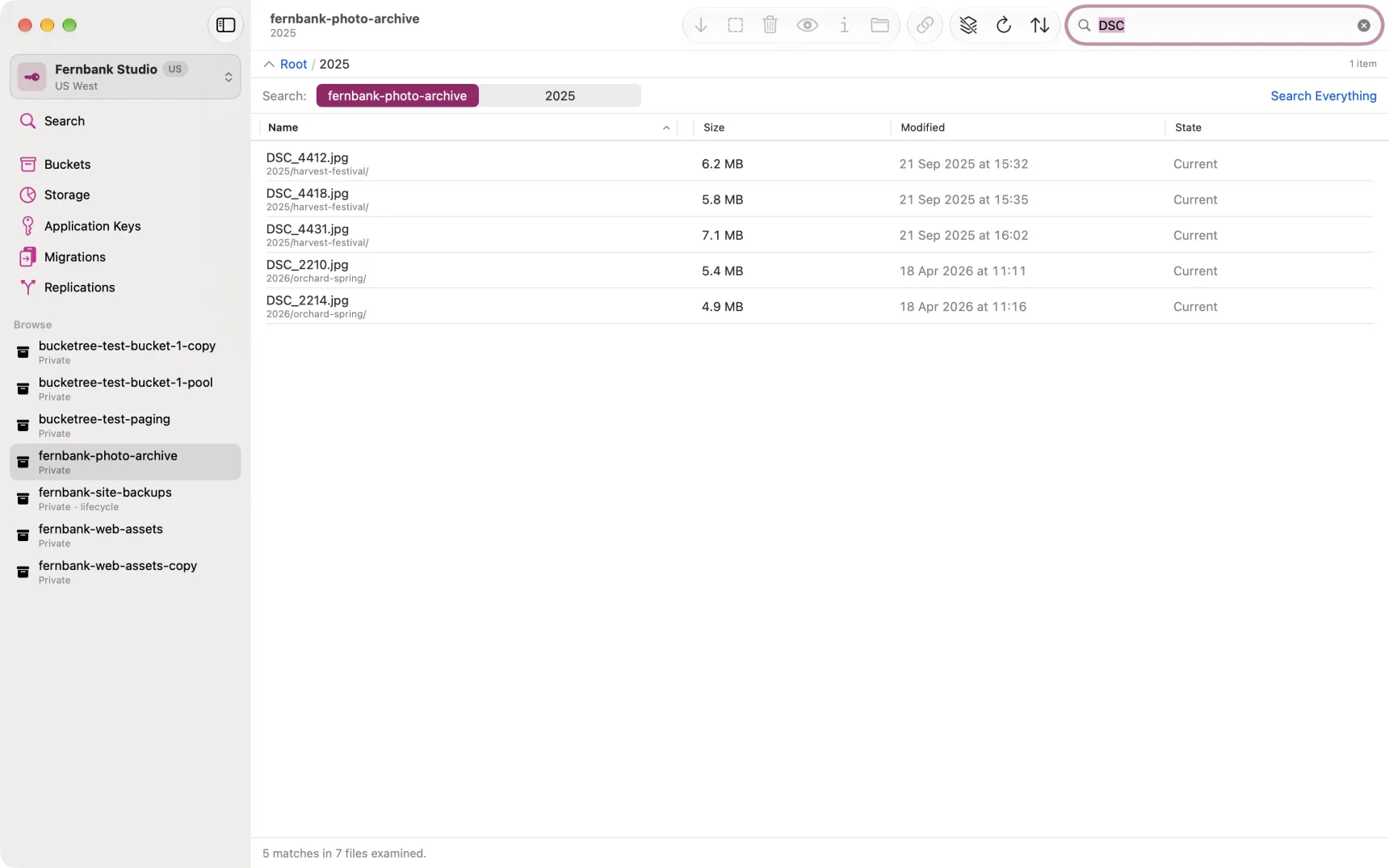
The results replace the listing. Above them, Search: says where it looked and, if you were inside a folder, offers that folder as a narrower scope. Searching a folder is quicker than searching the bucket, because that is the one kind of narrowing Backblaze can do on its own end.
Clear the field to get the listing back. Search Everything takes what you typed to the full search, across every bucket, and runs it there.
Across every bucket
Search in the sidebar, or Option-Command-F. This is the full version: any number of conditions, over one bucket or all of them, with the results showing which bucket each file is in.
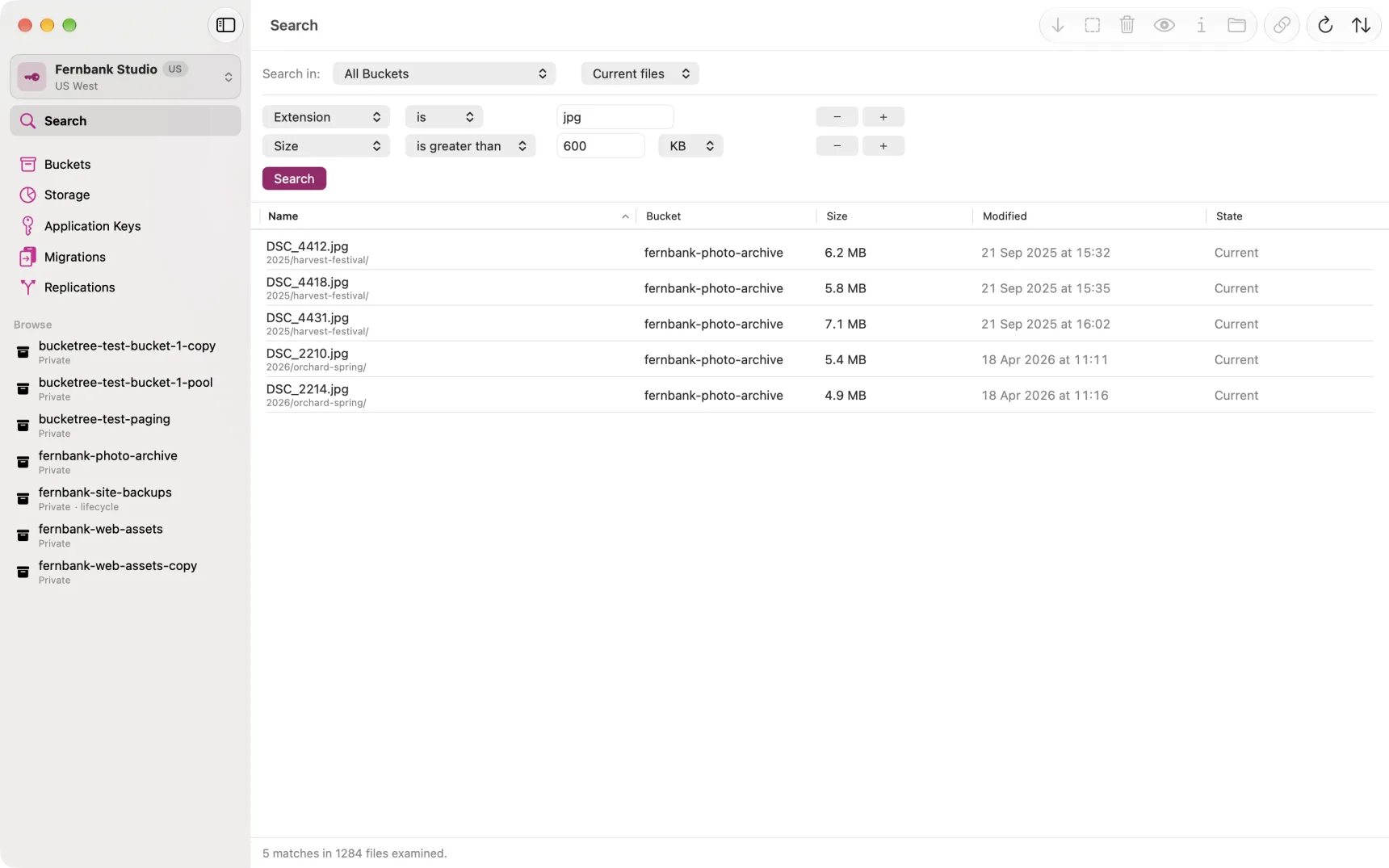
Search in says where to look. Current files is what you would see in the ordinary listing. All versions includes older versions of each file. Hidden files finds files that are hidden, which appear in no ordinary listing at all and are still stored and still billed: this is the way to find one when you have forgotten where it was.
Each row is one condition, and every condition has to hold. The plus beside a row adds one beneath it; the minus removes it. A search needs at least one.
| Condition | What it matches |
|---|---|
| Name | The file's full name, folders included, so invoices finds everything in a folder called invoices |
| Extension | The part after the last dot. A leading dot is fine |
| Size | Larger or smaller than a figure |
| Date modified | The file's own modification time where the uploader recorded it, otherwise when it was uploaded |
| Kind | The content type Backblaze recorded, such as image/ or application/pdf |
| Encryption | Managed by Backblaze, your own key, or none. A file Backblaze says nothing about matches nothing here, because not knowing is not an answer |
In a name, * matches anything and ? matches one character. *.pdf finds
every PDF, in every folder; report-2026-0? finds a run of them. Without a
wildcard, a name condition simply means "contains", and it does not care about
capitals.
What happens when you press Search
Bucketree reads every file name in every bucket you chose. That is the only way to search a place that cannot search itself, and it takes time rather than money: a few seconds for a small account, longer for a large one. Results appear as each bucket is finished, and Stop takes effect at once.
The line at the foot says two things and both matter: how many files matched, and how many were examined. Three matches in ninety thousand files is a precise answer; three matches in three files means the search never reached the rest.
Acting on what you found
Select a result, or several. The toolbar offers what it offers inside a bucket, and the same actions are in the File menu and on a right-click. Download fetches them, wherever they are. Quick Look (or Space) shows a file without keeping it. Get Info opens the file's details. Copy Share Link makes a link for each selected file, authorized in its own bucket. Reveal in Bucket (or Return) takes you to the folder the file is in, the way Show in Enclosing Folder does in the Finder. Copy Name puts the full names on the clipboard, one per line.
Two things the bucket's toolbar has that this one does not: Upload, because a search is not a place to put anything, and Clean Up, which belongs to one bucket.
Hide and Delete act on the exact versions you selected, in whichever buckets they live. Deleting from a search is the one place in Bucketree you can remove a file without ever opening its folder, so the confirmation says what will go, how much it is, and whether any of it is a current version. Nothing is deleted until you have read that.
What it does not do
Searches are not saved yet. Copying a found file to another bucket is not offered yet either; download it and upload it, or use replication if the whole bucket should go.